
Free · macOS · Windows · .zip
IPAGO

IPAGO

Downloads purchased and removed apps from your Apple ID and installs them on iPhone or iPad over Wi‑Fi.

IPAGO (a modified version of IPA Downloader by kda2495) is a macOS and Windows utility. Sign in with your Apple ID, find apps you already bought (including ones removed from the App Store), download the IPA, and install it on iPhone or iPad over Wi‑Fi.

  • Platform macOS · Windows
  • Categories Utilities
  • Size 95.4 MB
  • Downloads 4 downloads

Based on IPA Downloader (kda2495) · published on www.kompaniec.com · v1.0.0 · free · .zip

IPAGO

What it can do

Get apps from your Apple ID purchases back on the device — even if they disappeared from the App Store long ago.

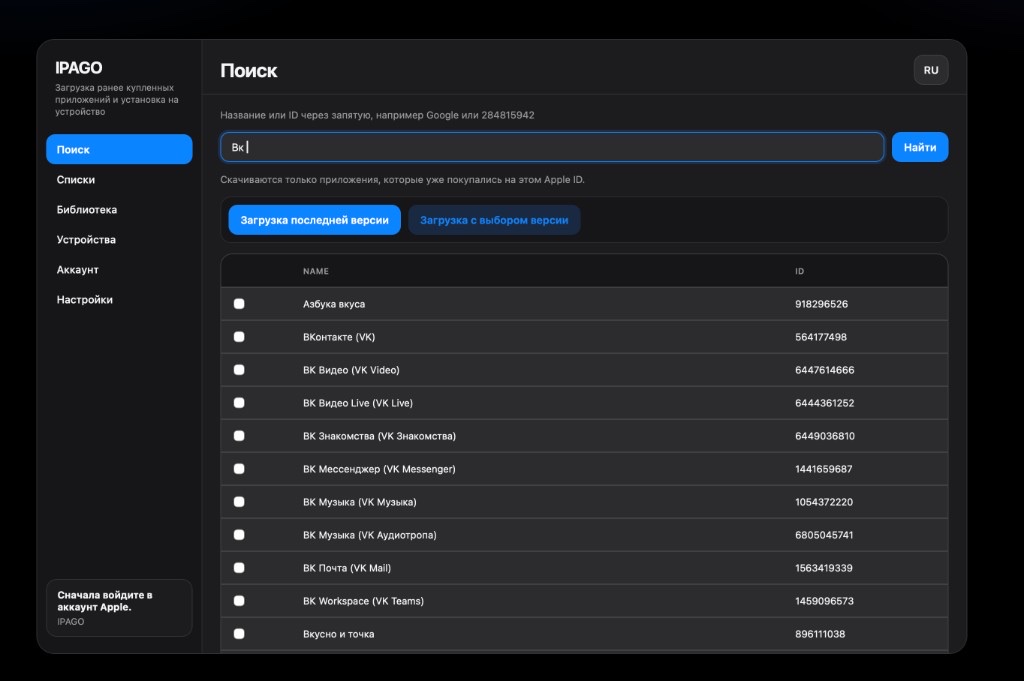
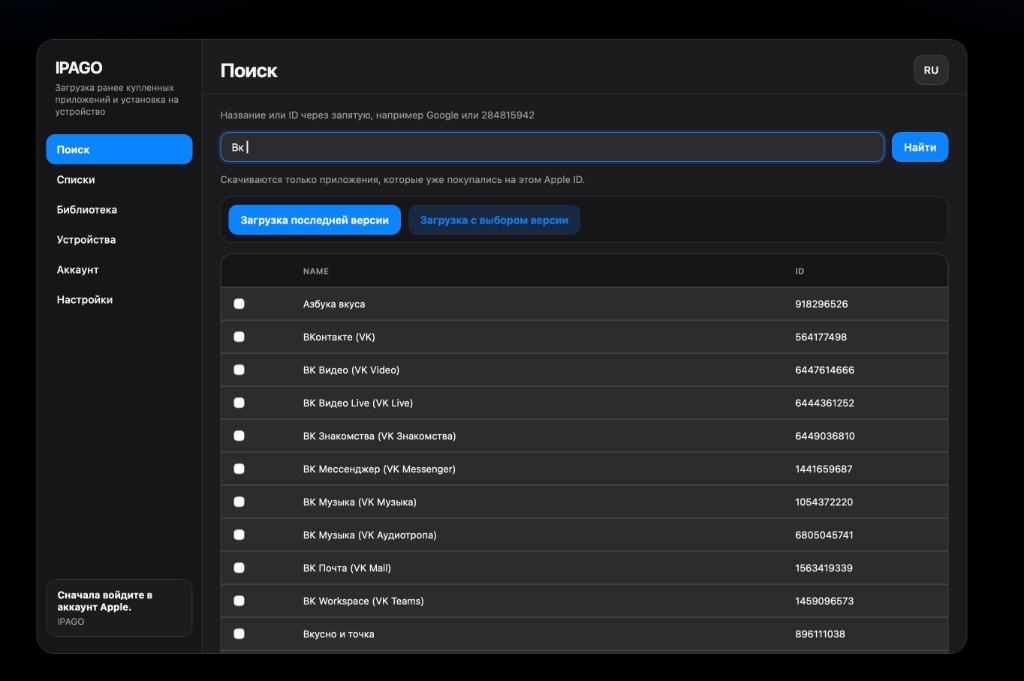
Just open Search and type a name or App Store ID — for example “Google” or 284815942. Only apps you already bought on that Apple ID are downloaded: your own purchases, not someone else’s catalog.

Take the latest version or pick one from the list. Then it’s simple: sign in, find it, download, and install over Wi‑Fi. Handy when an app left the Store but is still listed in Purchases.

On Windows, installing to a device needs the AppleMobileDeviceSupport64 driver from iTunes — just install it. On macOS install PowerShell first, then run “Запустить IPAGO.command” — order matters.

The .zip includes a GUI and scripts for macOS and Windows. After unpacking, read “КАК ЗАПУСТИТЬ.txt” and follow the steps on this page.
How to run on macOS

Follow this order. Without PowerShell the GUI will not start.

  1. Download PowerShell: powershell-xxx-osx-arm64.pkg for Apple Silicon or powershell-xxx-osx-x64.pkg for Intel from official PowerShell releases on GitHub.

  2. macOS 11 Big Sur: PowerShell 7.4.21. macOS 10.15 Catalina: PowerShell 7.3.12 (osx-x64.pkg).

  3. Install the PowerShell package.

  4. Unpack IPAGO.zip and run “Запустить IPAGO.command”.

  5. Sign in with Apple ID, find a purchased app, download it, and install to the device over Wi‑Fi.

Windows requirements

The script runs without the driver, but installing downloaded apps to a device needs it.

  1. Download iTunes from Apple.

  2. Install full iTunes, or selectively AppleMobileDeviceSupport64.msi: unpack the iTunes installer with 7-Zip or WinRAR and run the MSI.

  3. Unpack IPAGO.zip and run Start_IPA_Downloader_GUI.bat (or Start_IPA_Downloader_Windows.bat).

  4. Sign in with Apple ID, download purchased apps, and install to iPhone / iPad.

Features

Sign in with your Apple ID

Search by name or App Store ID

Download previously purchased and removed apps

Latest version or pick a version

Install to iPhone / iPad over Wi‑Fi

macOS and Windows in one archive

GUI and launch scripts

Russian UI

Who it is for

Anyone who needs an older app back on iPhone or iPad from their own purchases.

The app was removed from the App Store but is still in Purchases

You need a specific version, not only the latest

You install IPA to your device over Wi‑Fi

You use Mac or Windows with the same Apple ID

Interface

FAQ

Can I download any Store app?

No. Only apps already purchased on your Apple ID — including ones removed from the shelf but still in Purchases.

Do I need a cable?

Install to the device over Wi‑Fi. On Windows you still need the AppleMobileDeviceSupport64 driver from iTunes for install.

What to install on Mac before IPAGO?

PowerShell first (arm64 or x64 for your Mac), then “Запустить IPAGO.command”. Order is required.

How is Windows different?

You need AppleMobileDeviceSupport64 (from iTunes or the MSI inside the unpacked installer). Without it download may work; install to the device will not.

Is it paid?

No. The .zip from Kompaniec is free.

Download IPAGO

.zip for macOS and Windows. Read the requirements below, then launch.

Download IPAGO